It is the classic smartphone dilemma. You are trying to decide between the futuristic, folding novelty of the Samsung Galaxy Z Flip 6 and the upcoming, raw processing muscle of the Apple iPhone 17. The Flip 6 hit the market in July 2024 with a rather premium $1,100 price tag for its base model. On the flip side, the iPhone 17 is slated for a September 2025 release, aiming for a much more approachable $799 starting price.
Let’s break down how these two devices stack up against each other on paper, and then dive into a surprisingly frustrating hurdle you will face right out of the box if you decide to go with team Samsung.
Form Factor and Display Tech
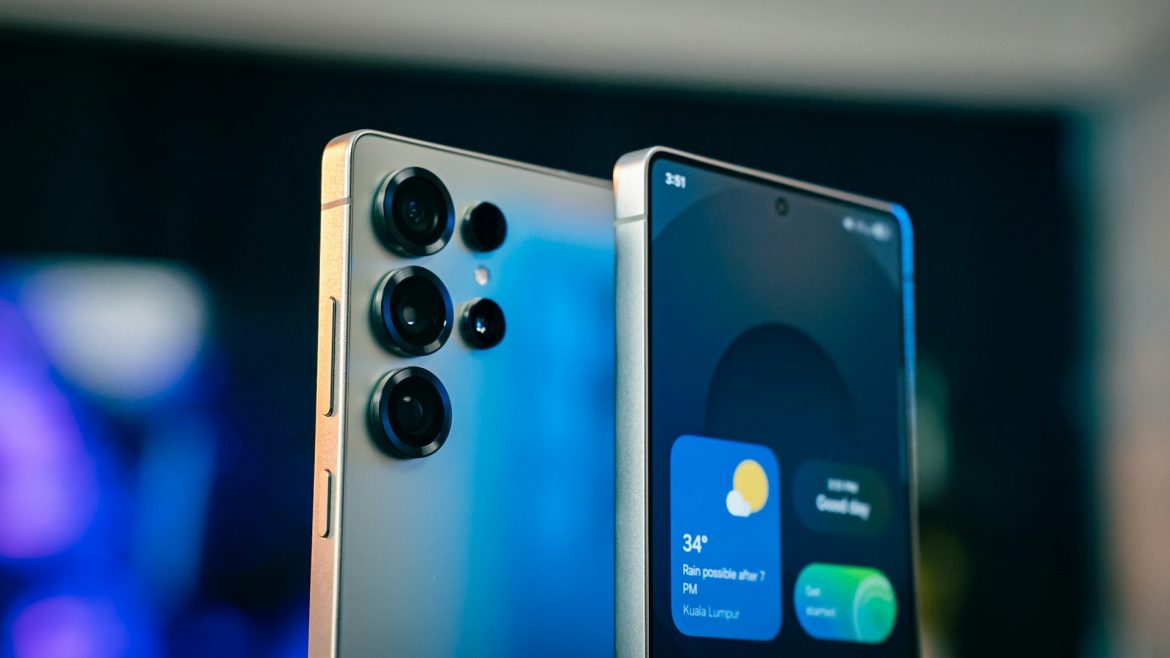
Samsung absolutely owns the clamshell design. Folded shut, the Flip 6 is a highly pocketable square measuring just 3.35 by 2.83 inches, featuring a handy 3.4-inch Super AMOLED cover screen for quick interactions. Flipped open, it reveals a massive 6.7-inch Dynamic AMOLED display with a 120Hz refresh rate and a peak brightness of 2600 nits.
Apple is sticking to its refined slab formula. The iPhone 17 features a 6.3-inch OLED display, but it pushes the envelope on brightness, maxing out at a blinding 3000 nits. Apple also holds the edge in durability, offering IP68 water and dust resistance compared to Samsung’s IP48 rating.
Under the Hood: Silicon and Stamina
When we look at raw performance, Apple’s silicon continues to flex. The iPhone 17 packs the cutting-edge 3nm Apple A19 chip running iOS 26.x, and it absolutely smokes the benchmarks. It hits GeekBench 6 scores of roughly 3527 for single-core and 8798 for multi-core tasks. Samsung’s 4nm Snapdragon 8 Gen 3 chip is incredibly capable, but its scores (2251 single-core, 7131 multi-core) definitely lag behind Apple’s beast.
Both phones come standard with 8GB of RAM and 256GB of non-expandable storage. Interestingly, while the Galaxy houses a slightly larger 4000 mAh battery compared to the iPhone’s 3692 mAh cell, real-world battery life estimates are practically neck-and-neck—both will get you roughly 6 hours of browsing or 16 hours of video playback. However, Apple takes the win for charging speed, supporting 40W wired charging against Samsung’s 25W.
The Camera Systems
Both manufacturers opted for dual rear camera setups, but their approaches differ slightly:
-
Samsung Galaxy Z Flip 6: Features a 50MP main shooter alongside a 12MP ultra-wide lens.
-
Apple iPhone 17: Goes all-in with dual 48MP sensors for both the main and ultra-wide cameras.
Based on PhoneArena’s rigorous camera testing, Apple holds the advantage, securing an overall score of 150 compared to Samsung’s 137.
The Samsung Learning Curve: How to Turn the Thing Off
Let’s say you decide to embrace the fold, ignore the benchmarks, and snag the Galaxy Z Flip 6. You unbox it, get everything set up, and eventually decide it’s time to power the device down. You press and hold the side power button, expecting the screen to go black. Instead, my digital counterpart—the Gemini voice assistant—pops up to say hello.
It is a notoriously annoying puzzle for new Samsung owners. The physical key has essentially been hijacked by AI, leaving you wondering how to actually shut off your own phone. Do not worry; there are a few straightforward ways to bypass this design choice.
Use the Button Combo The fastest way to bypass the AI and turn off your Galaxy is a simple physical shortcut. Press and hold the Power and Volume Down buttons at the same time. After a few seconds, the traditional power menu will appear on your screen, giving you the options to power off, restart, or make an emergency call.
Swipe Down for the Status Bar If you prefer not to fumble with hardware keys, you can handle it entirely through the software. Swipe down twice from the top of your screen to fully expand the quick settings panel. Tucked away in the top right corner—right between the search icon and the settings gear—you will spot a tiny power icon. Tap it, and the shutdown menu will appear.
Remap the Power Button For the purists who want their dedicated power button back, you can reprogram it. Trigger the power menu using the button combo mentioned above, but instead of turning the phone off, tap on Side key settings at the bottom. Under the “Press and hold” section, you can switch the function from waking the AI assistant to bringing up the power-off menu. The major caveat here is that you lose the physical shortcut for Gemini. From then on, you will have to rely on saying “Hey Google” to wake the assistant, which you can configure in the Gemini app settings.
Ask the Assistant to Do It Finally, if you already have voice commands active, you can simply tell your phone to shut down. If you say “Turn off the phone” while using Gemini, it will open the power menu for you to manually tap the final button. If you happen to use Samsung’s native Bixby assistant, it can actually shut the device down completely after a quick verbal confirmation, entirely hands-free. Because Bixby is baked deeply into the operating system, it has a bit more system-level control than Gemini does in this specific scenario.